What is Ambient Mode on YouTube and how do you use it?
YouTube recently announced a number of changes to its video viewing interface. One of these changes is a new feature called Ambient Mode.
YouTube recently announced a number of changes to its video viewing interface. One of these changes is a new feature called Ambient Mode.
What is Ambient Mode?
Ambient Mode is essentially a lighting effect that surrounds a specific YouTube video with a soft, bright light that often mirrors the colors present in the video itself. The effect is similar to the glow of a television screen in a room with the lights off (YouTube says this was the inspiration for the effect). YouTube also stated that Ambient Mode should make the video-watching experience “more immersive” than dark mode. Ambient Mode was officially announced in late October 2022 and is currently available on web, Android, and iOS.
It's best to see Ambient Mode in action. Here's a video from YouTube's official announcement showing how a video will look before and after Ambient Mode is enabled:
Before Ambient Mode is activated, you'll see the video player's background is a plain, black screen. However, once Ambient Mode is activated, the background of the video player at the top of the screen glows with a light pink/red hue, reflecting the colors of the video. Ambient Mode is a glow effect that changes color for video playback.
How do I turn on Ambient Mode?
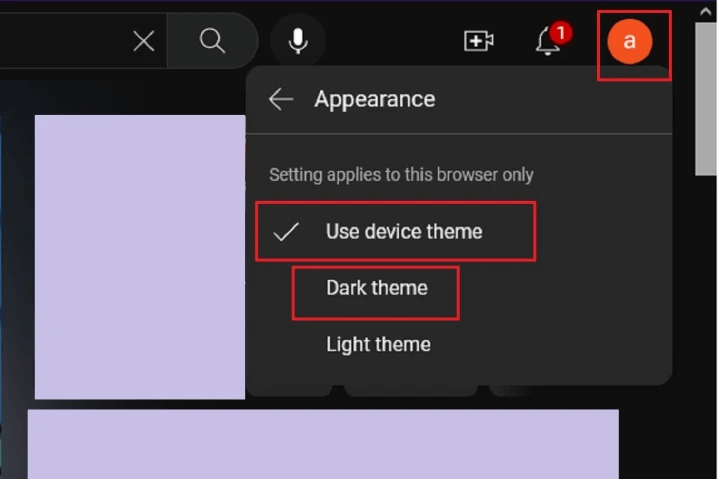
Ambient Mode is only available when YouTube's Dark Theme is enabled. When Dark Theme is turned on, Ambient Mode will be automatically enabled. You can turn on Dark Theme as follows:
On the internet:
If you haven't already, go to YouTube.com and sign in to your account. Then, go to your Profile icon > Appearance > Set the Dark theme or Device theme (if your device is currently running in dark mode).
On Android and iOS:
Open the app. Then, go to your Profile icon > Settings > General > Appearance > Use dark theme or Device theme (if your device is currently set to use dark mode).
How do I turn off Ambient Mode?
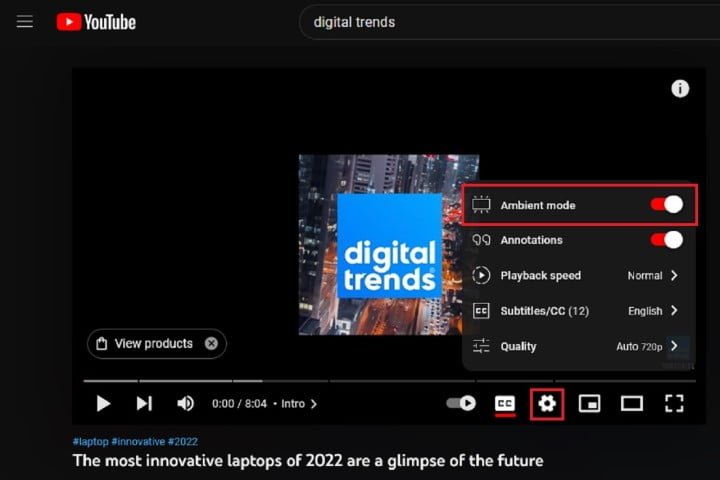
Ambient Mode is designed to be gentle and soft. However, you can turn it off if you find it distracting. Disabling Ambient Mode is almost the same for web, Android, and iOS.
Click the Settings icon shown in the video above. Then, you can turn Ambient Mode on or off by selecting it from the menu that opens. (On the web, there's a real toggle to choose from next to Ambient Mode.)
Disabling the feature for one video disables it for all videos you watch thereafter. Therefore, if you want Ambient Mode to reappear, you need to turn it back on as soon as you turned it off.
For just 1 TL per day, subscribe and gain unlimited access to all our content and support independent journalism! Subscribe Now!